WAF Exceptions
No Web Application Firewall is perfect. Even with carefully tuned rules, there will be moments when a legitimate request is blocked — a plugin uploading a file, an API call with an unusual payload, a developer working from a known IP, etc. These are commonly known as false positives.
Instead of forcing you to disable an entire rule (which would weaken protection for every site on the server), Pyxsoft WAF lets you create surgical exceptions: precise rules that disable one or more WAF checks only for the requests you describe.
This page explains where to find the WAF Exceptions screen, how to create exceptions both manually and from real blocked events in the log, and how the matching engine evaluates them.
When Should You Create an Exception?
Use an exception when:
- A WAF rule is blocking legitimate traffic on a specific URL of a specific domain.
- You need to allow an admin panel, API endpoint, or upload form that triggers a security rule by design.
- A trusted third-party service (payment gateway, monitoring bot, internal tool) is being flagged.
An exception turns off the selected rules for the requests that match it. Always keep the scope as narrow as possible — a specific URL prefix, a specific domain, and, when possible, specific HTTP methods or IPs. A bare / URL would disable the rules for every request on the domain, which defeats the purpose of having a WAF.
Where to Find It
There are two ways to reach the exceptions feature:
1. From the main menu
Navigate to WHM → Pyxsoft WAF → WAF Exceptions.
This opens a centralized table with every exception configured across every domain on the server. From here you can:
- Search across domains, URLs, methods, IPs and rule IDs.
- Filter the list by domain.
- Add, edit or delete exceptions.
2. From the WAF Event Log
When you are investigating blocked requests in WAF → Event Log, click on any event to open the detail modal. If the request was a false positive, click “Add to exceptions”.
This opens the same dialog as before, but prefilled with:
- The domain of the blocked request (locked — you cannot change it).
- The URL of the request, with query string and fragment removed.
- The rule ID that triggered the block.
This is the fastest way to react to a confirmed false positive: open the event, click the button, refine the scope, and save.
Creating an Exception
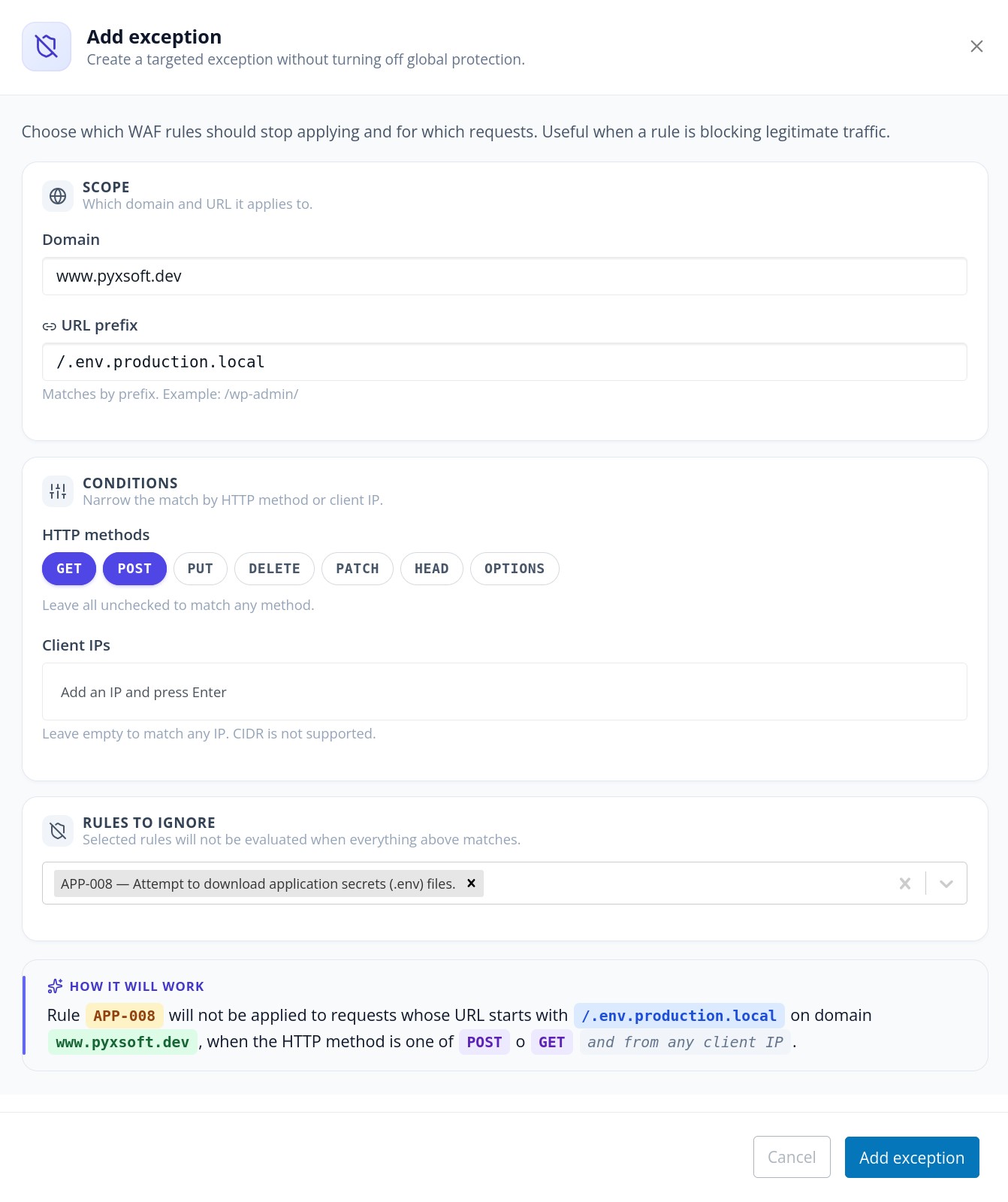
The Add/Edit dialog is organized in three sections plus a live preview.
Scope — which requests does it apply to?
| Field | Required | Description |
|---|---|---|
| Domain | Yes | The WAF-protected domain the exception applies to. When opened from the Event Log, this is locked to the originating domain. |
| URL prefix | Yes | The URL path the exception applies to. Must start with / and is matched by prefix (not by regex). For example, /wp-admin/ matches /wp-admin/, /wp-admin/post.php, /wp-admin/admin-ajax.php, etc. |
A URL of / would match every request on the domain. The interface will reject / when the dialog is opened from the Event Log to prevent accidentally disabling rules server-wide. Even when allowed, prefer the deepest path that still covers your use case.
Conditions — narrow the match further (optional)
| Field | Required | Description |
|---|---|---|
| HTTP methods | No | Pills for GET, POST, PUT, DELETE, PATCH, HEAD, OPTIONS. Click to toggle. Leaving all unselected means "match any method". |
| Client IPs | No | A chip input where you type an IPv4 or IPv6 address and press Enter. Each chip is validated. Leaving the list empty means "match any IP". |
The IP field accepts exact IPv4 and IPv6 literals only. Ranges in CIDR notation (e.g. 192.168.1.0/24) are not supported. If you need to whitelist a range, add the addresses individually or, for very wide ranges, consider whether an exception is the right tool at all.
Rules to ignore — what should the WAF stop checking?
A multi-select dropdown, grouped by category, lists every WAF rule:
- STD — Standard checks
- BOT — Bad bots
- SQL — SQL injection
- XSS — Cross-site scripting
- APP — Application protection
- WP — WordPress protection
- UPL — Upload protection
- BF — Brute force
- DOS — Denial of service
- IP — IP greylist
Select at least one rule. Only the rules you select here will be ignored when a request matches the scope and conditions above. All other rules continue to apply normally.
Live preview
Below the form there is a plain-language preview that updates as you fill in the fields. It reads like a sentence — for example:
Rule
WP-001will not be applied to requests whose URL starts with/wp-admin/, on domainexample.com, when the HTTP method isPOST, and the client IP is203.0.113.10.
If the preview does not describe what you want, adjust the fields before saving.
How the Matching Engine Evaluates Exceptions
For an exception to "fire" on a given request, all of the following must be true:
- The request domain matches the exception's domain.
- The request URL begins with the configured URL prefix.
- If any HTTP methods are listed, the request method is in that list. Empty list = any method.
- If any client IPs are listed, the request comes from one of those IPs. Empty list = any IP.
When all four conditions match, only the rules selected in "Rules to ignore" are skipped. Every other WAF rule still runs against the request.
If different IPs need different rules ignored, create separate exceptions — one per (URL, methods, IPs, rules) combination. Mixing everything into a single entry would broaden the match more than you intend.
Editing and Deleting Exceptions
From the main WAF Exceptions table:
- The pencil icon opens the same dialog in edit mode, with the domain locked.
- The trash icon prompts a confirmation before removing the exception. The confirmation reminds you that requests previously allowed by this exception may start being blocked again.
Changes are saved atomically per domain. The interface re-reads the current list from the server before each write, so concurrent edits from multiple administrators do not overwrite each other silently — if the list changed underneath you, the save will fail with a clear error and you will need to reload the page.
Best Practices
- Start from the Event Log. When a customer reports a blocked legitimate action, find the blocked event first. The "Add to exceptions" button prefills the exact URL and rule, eliminating guesswork.
- Keep the scope tight. Prefer
/wp-admin/admin-ajax.phpover/wp-admin/, and/wp-admin/over/. - Pin to a method when you can. If the false positive is on a form submission, scope the exception to
POSTsoGETrequests on the same URL still get full protection. - Pin to an IP for internal tooling. Monitoring agents, deployment hooks, and internal dashboards usually run from known IPs. Adding them as a condition prevents the exception from being abused by an attacker who finds the same URL.
- Review periodically. Exceptions accumulate. Open the table from time to time, search for old entries, and remove the ones that no longer apply (the application has been patched, the integration has been replaced, etc.).
Summary
The WAF Exceptions screen is the right tool when Pyxsoft WAF blocks a legitimate request and you need to keep that request flowing without disabling the rule for everyone. Exceptions are scoped by domain + URL prefix, optionally narrowed by HTTP method and client IP, and they disable only the specific rules you select.
Combined with the WAF Event Log → Add to exceptions shortcut, troubleshooting a false positive becomes a one-click workflow: find the blocked request, confirm it is legitimate, prefill the exception, refine the scope, and save.